A Server at Home: What I Took Back From the Cloud, and What I Didn't
Updated Sep 13, 2026
What this is about
There’s a mini PC running in a corner of my flat. It’s been up for eight days straight without me touching it, and right now it holds my photos, my music, my books and my passwords. None of that goes through Google any more.
This post is how I got there: what a server actually is when you look closely, which alternatives I weighed at each decision, and why I picked what I picked. It also covers what doesn’t work as smoothly as an enthusiastic tutorial suggests, because there are real downsides and I’d rather say them out loud.
And at the end I talk about money, because there’s a factor right now that changes the advice I’d give anyone thinking of copying this.
First: what is a server?
A server isn’t a kind of computer. It’s a role a computer plays.
Your laptop is built for you to sit in front of it: screen, keyboard, and it sleeps when you close the lid. A server is a computer you never sit in front of. It’s on all the time, with no screen or keyboard attached, waiting for other devices to ask it for things over the network. You talk to it from your phone or your laptop, and it answers.
That’s genuinely all there is to it. When you open Instagram, your phone asks a Meta server for photos. When I open my gallery, my phone asks a box sitting four metres away. The difference isn’t technical: it’s whose box it is.
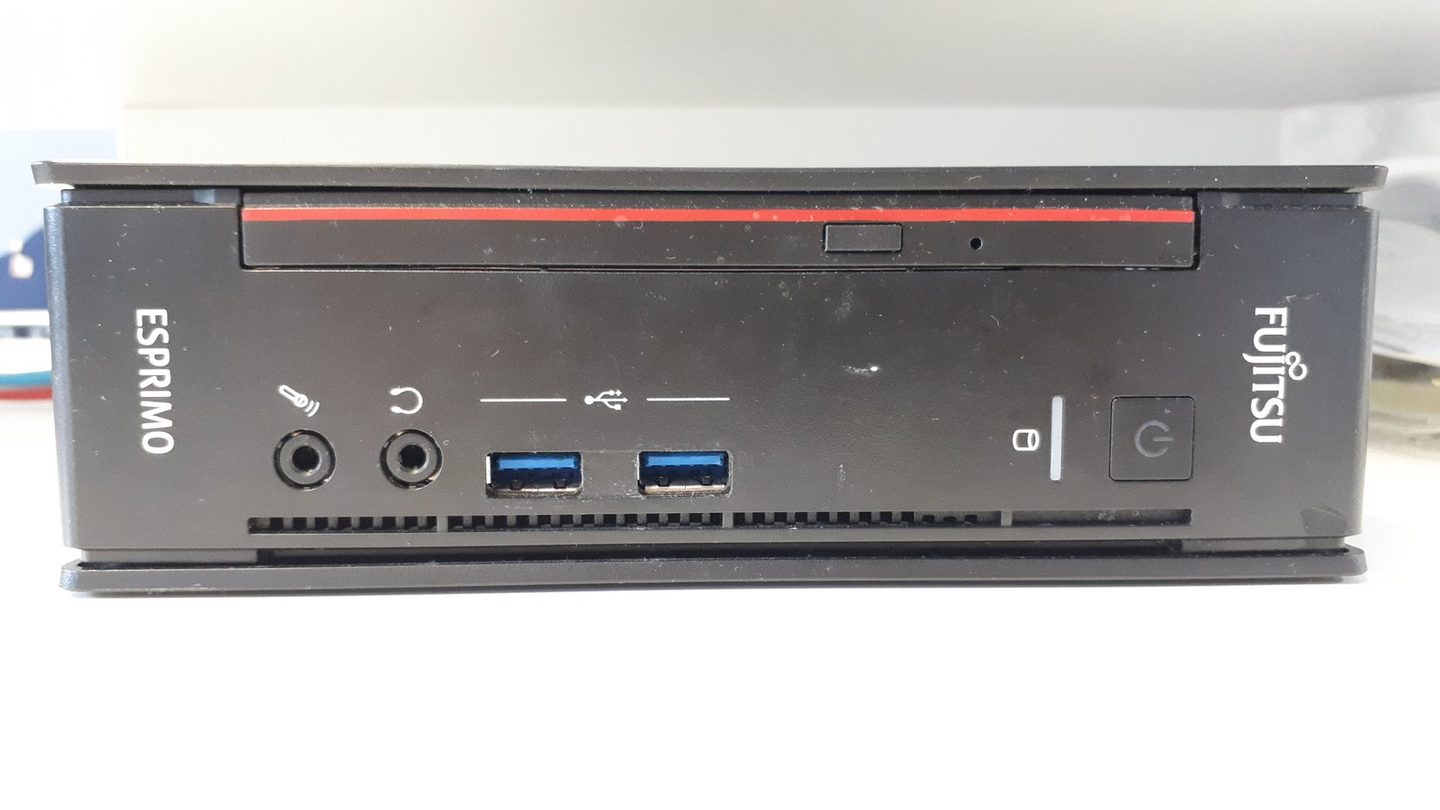
“Server” doesn’t mean a rack with blinking lights either. Mine is a refurbished office mini PC, about the size of a thick book, drawing less power than an old light bulb.
The hardware: a second-hand office PC
I bought an HP ProDesk 400 G6 Mini. Here’s what’s in it:
- Intel Core i5-10500T, 6 cores and 12 threads
- 16 GB of DDR4 RAM
- A 476 GB NVMe SSD
- Integrated Intel UHD 630 graphics, no dedicated card
- Ubuntu 26.04 LTS
Why an office mini PC and not something else? I considered three options.
A Raspberry Pi is what everyone recommends for starting out, and it’s good advice: cheap, tiny, sips power. I ruled it out because I wanted this thing to do demanding work — processing photos, maybe AI models — and a Pi runs out of headroom the moment you ask for more than file serving. SD card storage is also a known failure point.
A commercial NAS (a Synology, say) is the comfortable option: it comes with its own OS, its apps, a polished interface. I looked at it seriously, and got as far as comparing models and drives. I ruled it out for two reasons: it costs noticeably more for the power you get, and it locks you into their ecosystem. If one day I want to install something Synology doesn’t like, that’s a problem I simply don’t have on plain Ubuntu.
A cloud VPS would have been more reliable in terms of uptime, but it breaks the whole premise. If the goal is that my photos aren’t on someone else’s computer, renting someone else’s computer doesn’t solve it.
The refurbished office mini PC wins because it’s the sweet spot: real PC power, second-hand pricing, low draw, and it’s hardware built to sit switched on in an office for years. These come onto the used market by the thousand when companies refresh their fleets.
The decision that shapes everything: open no ports
Before installing anything you have to answer one question: how do I reach the server from outside the house?
The classic answer is port forwarding on the router. You tell the router “anything hitting port 443, send it to the server”, and now you can get in from anywhere. It’s what most people do, and it works.
It also means your server is exposed to the entire internet. And “the entire internet” includes bots scanning IP addresses around the clock looking for things left misconfigured. That’s not paranoia: open a port and within hours somebody is probing it.
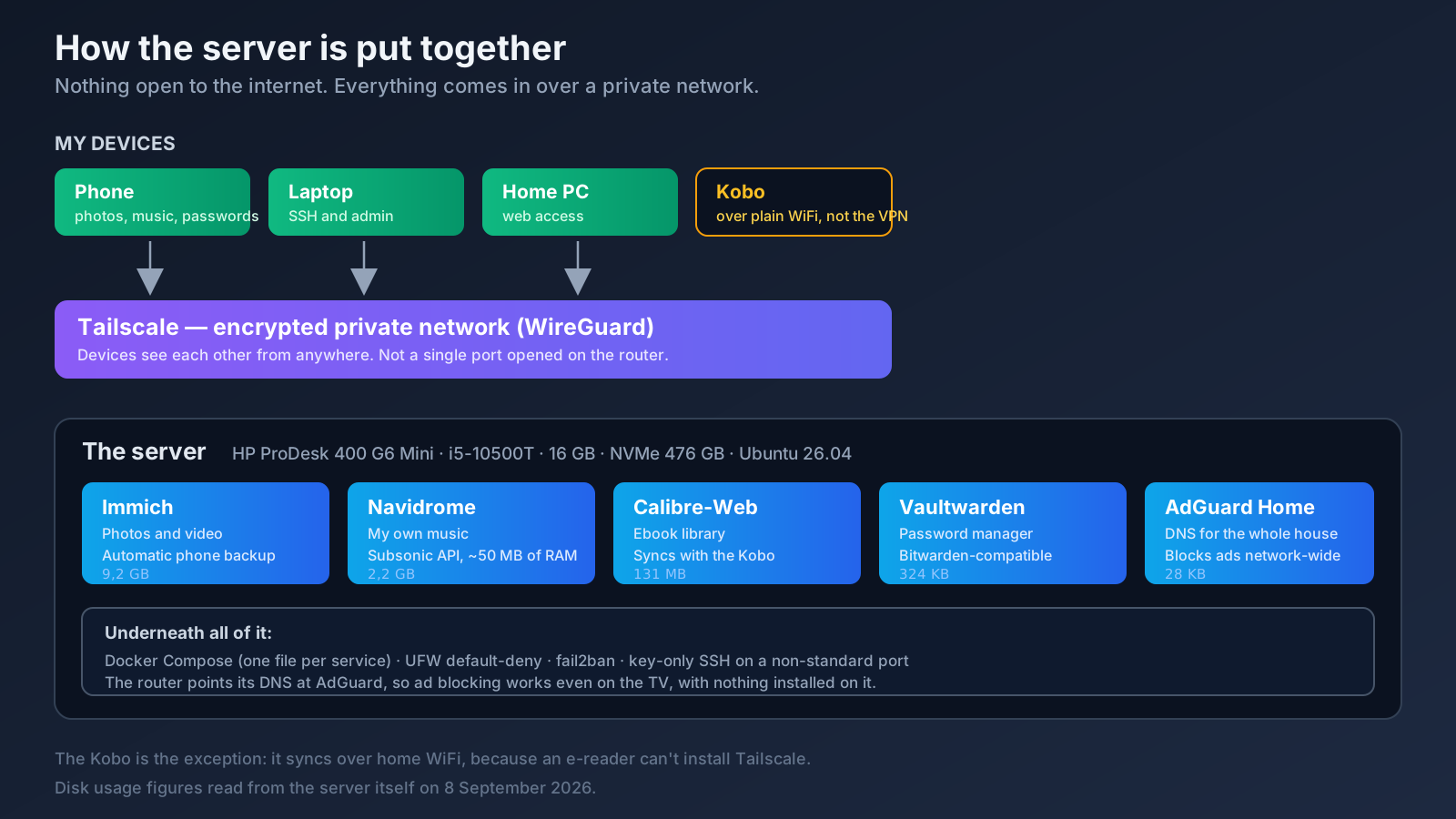
The alternative I chose is Tailscale, which builds a private network between my devices using WireGuard. My phone, laptop, PC and the server see each other as though they were in the same room, even when I’m across the country. And from outside that network, the server doesn’t exist. There’s no port to scan.
Downsides? Two, and they’re real.
First: anyone who wants access has to install Tailscale. If I want to show my dad the photos on his phone, I can’t just send him a link. That’s genuine friction.
Second: I depend on a third-party service for coordination. Tailscale can’t see my traffic — that’s end-to-end encrypted — but it does manage who may connect to whom. There’s Headscale, a self-hosted coordination server, and running that would be the fully consistent choice. I haven’t, because it’s one more piece to maintain, and I’ve been picking my battles.
Photos: the hardest one to give up
Google Photos was the toughest thing to replace. Not the photos themselves, but everything around them: automatic backup, a search that finds “beach” without anyone tagging anything, faces grouped together.
I compared six options. The three that got far:
PhotoPrism is more mature and has a reputation for not breaking things between versions. But it has no official mobile app. Automatic phone backup was the central requirement, so it fell at the one hurdle I couldn’t move.
Ente struck me as technically elegant: end-to-end encrypted, with face recognition running on the phone rather than the server, so the server barely works. It’s still my plan B if mine ever falls short. It lost because its self-hosting community is much smaller, and that matters at three in the morning when something breaks and you’re looking for someone who hit the same error.
Immich won. It’s effectively a functional clone of Google Photos: native app, background auto-backup, semantic search, face recognition. And a huge community.
Now, the downside I’m not going to skip: Immich breaks things across major versions. It reached stable in October 2025, and by July 2026 version 3.0 already brought a mandatory migration of the vector search engine. The project itself recommends not relying on it as your only copy. I update by reading release notes, never blindly.
It’s using 9.2 GB with what I’ve put in so far.
Music: where the downside bites hardest
Here I run Navidrome, and the choice was easy. I considered Jellyfin (which does video too, but wants 2 to 4 GB of RAM) and Funkwhale (built for a federated network, which isn’t what I need). Navidrome runs in about 50 MB of RAM and speaks the Subsonic API, the de facto standard — which means I can pick from dozens of mobile apps instead of being tied to one.
But this is where the most serious downside of the whole setup lives, and I want to be blunt about it because it’s the one you feel daily.
When your music lives on a server, you need a connection to listen to it. If I get on the metro and lose signal, the music stops. If the files were on my phone, it wouldn’t. Spotify has the same problem and solves it with offline downloads; that exists here too — Tempo, the app I use, syncs for offline listening — but it’s a manual step you have to remember, not something that just happens.
It’s an honest trade: I get a library that’s genuinely mine, that nobody can pull from a catalogue, at whatever quality I choose. I lose the convenience of it simply always working.
One practical detail that cost me an afternoon: AIMP, the player I used on Android, doesn’t support Subsonic. There’s only a plugin for the desktop version. I switched to Tempo, which is open source and works with Android Auto.
Books: my own library, and a Kobo that can breathe
This is the part that’s given me the most satisfaction, and the part I expected least.
I have a Kobo. E-readers have little storage, so you end up doing a clear-out every so often, deciding what to delete. A server ends that: the whole library lives on the server and the Kobo only carries what I’m reading now. When I finish, I remove it and pull down another. Storage stops being a consideration.
Six options compared again. The real fight was between two.
Kavita is objectively better at managing enormous libraries, and its development is more consistent. If I had tens of thousands of comics, it’d be my pick without hesitation.
Calibre-Web-Automated won for one very specific reason: it syncs natively with the Kobo over WiFi. With Kavita I’d have to install KOReader on the device for OPDS access. That means messing with the Kobo, and I didn’t fancy it. CWA also has an “ingest” folder: drop an EPUB in and it fixes the metadata, finds a cover and files it away. I was starting from a pile of loose unsorted files, so that saved me hours.
There’s an architectural exception here worth explaining: the Kobo is the only device that doesn’t come in over Tailscale. It can’t — it’s an e-reader, you can’t install a VPN on it. So this one service is open to my home network. That’s a deliberate concession, not an oversight: the exposed surface is my WiFi, not the internet.
Passwords: the most useful of the lot
Vaultwarden is a reimplementation of Bitwarden written in Rust. It speaks the same protocol, so the official Bitwarden apps work, but it uses a fraction of the resources. It occupies 324 KB on disk.
Of all the services, this is the one that’s changed my daily life most. Long, distinct passwords everywhere, autofill on phone and browser, and the database sitting in my flat.
A nice technical detail: the password manager insists on real HTTPS, even over a private network. The reason is that the web vault uses the browser’s Web Crypto API, which only works in a “secure context”. Without HTTPS the page loads but encryption fails silently, which is the worst possible way to fail.
I solved it without standing up a reverse proxy, which is what I expected to have to do: Tailscale can issue a real Let’s Encrypt certificate for the server’s name inside my private network and act as the proxy itself. A whole container saved.
Ads: the service the whole house appreciates
AdGuard Home acts as the DNS server for the entire network. When any device at home asks “where is ads.example.com?”, it answers that it doesn’t exist. The ad isn’t blocked: it never gets downloaded.
The nice thing about doing it at network level is that it works on devices where you can’t install a blocker: the TV, the console, a visitor’s phone.
I considered Pi-hole, the best known one. It lost for a concrete reason: encrypting DNS queries needs a separate helper piece, and the method half the community used — cloudflared in proxy mode — stopped working in February 2026 after a change on Cloudflare’s side. AdGuard Home has that built in. I also looked at Technitium, technically superior at managing DNS zones, but that solves a problem I don’t have yet. Deploying a full authoritative DNS server to block ads is a sledgehammer for a nut.
Fifty days later I went to check whether this was really doing what I thought. The short answer is yes, but with three holes that weren’t visible from the dashboard: the full story is in the update at the end, with the real figures and the commands to get them.
What I decided not to build: email
I liked the idea of running my own mail on my own domain. I researched it and dropped it, and I think that’s the most useful decision in the whole project.
The problem isn’t setting it up. There are stacks that stand up a complete mail server in an afternoon. The problem is making it work:
IP reputation. A new mail server starts with zero reputation. Gmail and Outlook treat any IP they don’t recognise as suspect by default. Without SPF, DKIM and DMARC tuned over months, your mail lands in spam or bounces without telling you. That isn’t a task, it’s indefinite maintenance.
And the one that finished it: my ISP blocks outbound port 25 and won’t let me set reverse DNS on my home IP. Without that, no amount of perfect configuration sends reliable mail from here. It’s not a limitation I can fix.
So mail stays with a managed provider. Sometimes the right answer is not to self-host something, and I think saying so is more honest than pretending everything is doable.
The other use: somewhere to break things
Beyond the services, the server is a place to break things without consequences.
Before, when I wanted to try a database, an odd container or a web dashboard, I’d install it on my laptop and end up with a system full of half-uninstalled junk. Now I spin it up on the server, try it, and if it doesn’t convince me I delete the container and there’s no trace left.
That’s where personal dashboards live: a board showing the state of my stuff, a cron job that collects something each morning, a small API for a project. Things that would each cost a monthly subscription on a managed service, and here are just one more config file.
Tying it in with local AI
A few weeks ago I wrote about running local AI on an old PC. That experiment was on a different machine, with a dedicated GPU, and the main conclusion was that small, specialised models beat the big ones on nearly every real task I set them.
That fits this server better than it might seem. A small 4B model dedicated to one job — classifying, extracting structured data, answering questions about my notes — doesn’t need a high-end GPU. And the hard part is already built here: the data.
What makes sense to run here:
- RAG over my own notes: search my documents and have a model answer citing the retrieved passages. In that experiment I learned the deciding factor isn’t the model, it’s retrieval: with no RAG it got 2 of 7 questions right, and with multiple retrieval queries that climbed to 5 of 7.
- A small assistant for concrete, repetitive tasks, running overnight with nobody watching.
- Dashboards fed by my own data, without sending anything to an external API.
But there’s an honest limit: this server has no dedicated GPU. The integrated UHD 630 is no use for inference. Everything would run on CPU, which is fine for small models but won’t stretch to anything ambitious. And there’s a worse bottleneck, which I’ll get to now.
The real limits of this machine
Three things surprised me when I audited the machine:
The RAM runs in single channel. The 16 GB is a single stick, with the second slot empty. That halves memory bandwidth. For serving photos it’s irrelevant, but it’s exactly the bottleneck that hurts most in CPU model inference. Fixing it means adding a second identical stick.
The network negotiates at 100 Mb/s. The server’s card supports Gigabit; the router port it’s plugged into doesn’t. That caps transfers at around 12 MB/s, which you notice uploading a large batch of photos. Not the server’s fault, and fixable with a better cable or a switch.
No dedicated GPU, as covered.
Of the three, the only one I’d genuinely consider addressing is the RAM. And that’s where the problem starts.
Why now is a bad time to buy
If you’ve read this far thinking about building one, here’s the important warning.
Memory and storage prices have gone through the roof.
The numbers, collected in September 2026:
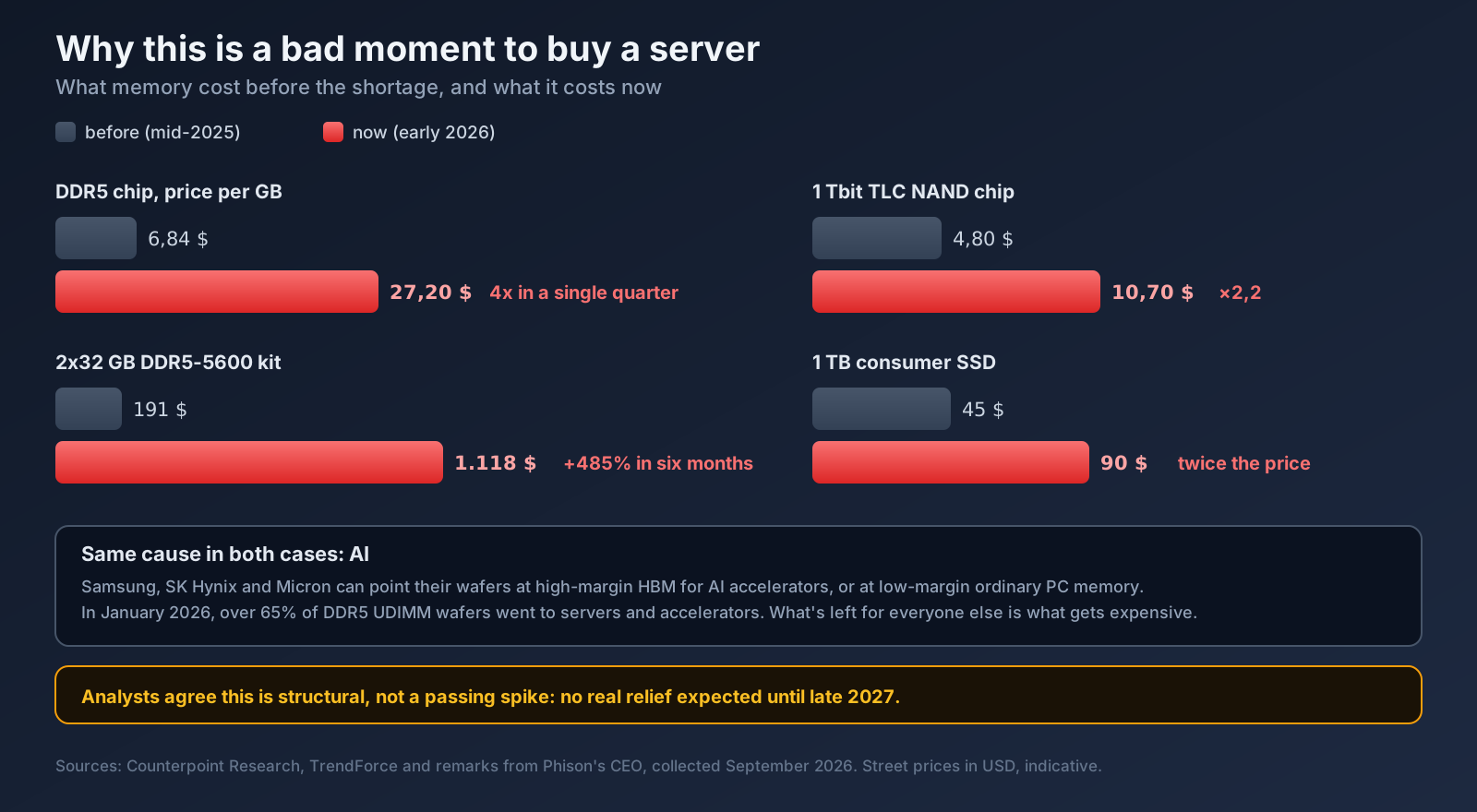
- DDR5 chips went from $6.84 per GB in September 2025 to $27.20 per GB by December. Nearly four times, in one quarter.
- A 2×32 GB DDR5-5600 kit that cost around $191 in August 2025 now runs about $1,118. That’s +485%.
- The NAND flash in SSDs has doubled in six months, from $4.80 to $10.70 per chip.
- A 1 TB consumer SSD has gone from roughly $45 to almost $90.
The cause is the same in both cases: AI. Samsung, SK Hynix and Micron can point their wafers at high-margin HBM for AI accelerators, or at low-margin ordinary PC memory. They’re choosing the former. In January 2026, more than 65% of DDR5 UDIMM wafers went to servers and accelerators.
And it doesn’t look like a passing spike. Analysts agree the causes are structural, with no real relief expected until late 2027.
What does that mean in practice?
If you already have hardware, it’s a good moment to squeeze it. I have 405 GB free out of 466: space is not remotely my problem.
If you were about to buy, wait if you can. And if you can’t wait, look at the used and refurbished market, which is exactly where mine came from and where these prices bite least.
My RAM upgrade — the €30-40 a stick cost a year ago — doesn’t add up right now. It stays on the list for later.
Same story with the NAS. I’ve studied it — compared models, drives, capacities — and the honest conclusion was that I don’t need one yet. With 405 GB free, spending €300 or more on storage I don’t need, at the worst pricing moment of the decade, would be buying for the sake of buying.
Pros and cons, briefly
What I gain:
- My photos, music, books and passwords are in my flat, on a disk I can touch.
- No subscriptions. The cost is electricity, a few euros a month.
- No artificial limits on space or quality.
- Nobody pulls something from my library because a licence expired.
- Somewhere to try things without dirtying my laptop.
- Ad blocking across the whole house, TV included.
What I lose:
- I am the support team. If something falls over on a Sunday, it gets fixed when I fix it.
- Music needs a connection, unless you sync offline by hand.
- Sharing with people outside is awkward, because they have to install Tailscale.
- Backups are my problem. A server is not a backup: if the disk dies, everything dies. This is the least solved part of my setup and I’m not going to dress it up.
- It needs maintaining. Updates, release notes, checking things are still alive.
- Not email. Some things aren’t worth self-hosting.
Conclusion
What surprised me most wasn’t the technical side. It was realising how many of the things we pay subscriptions for are, underneath, fairly simple: somewhere to keep files and a decent app to view them with. What you’re paying for, nearly always, is the convenience of someone else handling it.
That convenience has real value, and I won’t pretend otherwise. There are days I’d happily let Google deal with it. But when the price is that your photos, your music and your passwords live on someone else’s computer, under their rules and their changing terms, handling it myself comes out ahead.
If you’re considering it, my advice is to start with one service. Set up the password manager, or the ad blocker, and live with it for a month. Once that works and you trust it, add the next. Trying to build it all at once is the fastest route to five half-finished things and nothing working.
And if it’s the hardware holding you back: look at the refurbished market, which right now is where the common sense is.
Update: 13 September 2026 — 50 days of data, and three broken things I didn’t know about
I wrote this post when the server had been running for eight days. Fifty days later I sat down to check whether the ad blocker was actually doing what I thought it was doing.
Not entirely. And the striking part is that none of what I found was visible in the dashboard — I had to go down to the raw log. Here’s the whole process, including the two times I got the diagnosis wrong, because those are the ones worth reading.
First problem: the dashboard couldn’t answer me
I wanted one simple number: how much has it blocked since I set it up?
AdGuard Home keeps statistics for 24 hours by default. There’s no history. The question simply couldn’t be answered from the interface.
What does exist is querylog.json, a file where it records every single query, one JSON object per line. In my case, 626 MB and 1,667,107 queries over 50 days. The file is owned by root, but the container also runs as root, so you can read it without touching anything or reaching for sudo:
docker exec adguardhome cat /opt/adguardhome/work/data/querylog.json | wc -l
docker exec adguardhome cat /opt/adguardhome/work/data/querylog.json | grep -c '"IsFiltered":true'
1,667,107 queries. 445,011 blocked.
The number I had in my head was measuring something else
My deployment notes said “97-100% blocking”. The real figure is 26.7%.
Both are correct, and the difference matters more than it looks:
- The 97% came from a synthetic test: take a list of known ad domains, query them all, count how many get caught. That measures the quality of your lists.
- The 26.7% is the share of my real traffic that turned out to be junk. That measures how much rubbish my house generates.
A perfect blocker with perfect lists does not give you 97% of traffic blocked, because most of what your network asks for is legitimate. Confusing the two makes you believe you’re far better protected than you are. I corrected the note, because read side by side on the same page they invited exactly that mistake.
With the whole house connected and running normally, mine sits between 26% and 40%, averaging around 32%.
How to read 50 days of DNS with no dashboard
Everything that follows came out of a single awk pass. Each log line carries the date in "T", the domain in "QH", the client in "IP", and, if it was blocked, "IsFiltered":true:
docker exec adguardhome cat /opt/adguardhome/work/data/querylog.json | awk '
{
  b = index($0, "\"IsFiltered\":true")
  if (match($0, /"IP":"[^"]*"/)) ip = substr($0, RSTART+6, RLENGTH-7); else next
  total[ip]++; if (b) blocked[ip]++
}
END {
  for (i in total)
    printf "%-16s %7d %7d %5.1f%%\n", i, total[i], blocked[i], blocked[i]*100/total[i]
}' | sort -k2 -rn
A note on method: the first time round I copied the file to the server’s /tmp to work with it more comfortably. 626 MB written to a machine I was supposedly auditing without touching anything. I deleted it afterwards, but the right way is the one above — everything through a pipe, nothing written to disk.
And the first thing that came out of it was already interesting: the filter doesn’t pay off equally for everyone. The Fire TV Stick had 55.7% of everything it asked for blocked. My work laptop, 6.8%, because its traffic is GitHub and container registries, not advertising. The device that benefits most from a blocker is always the one you can’t control from the inside.
Finding 1: the resolver had one phone line and no backup switchboard
A DNS blocker does two things: it checks its blocklist, and for anything not on the list, it asks a real DNS server out on the internet. That server is called the upstream.
Mine had a single upstream and the fallback field empty. And that upstream was failing:
docker logs adguardhome --since 12h 2>&1 | grep -c "exchange failed"
# 131
131 failures in 12 hours, all unexpected EOF — the provider dropping the HTTPS connection mid-query. And the affected domains weren’t ads, they were things I use daily:
docker logs adguardhome --since 12h 2>&1 | grep "exchange failed" \
  | grep -oE 'question=";[^\\]+' | sort | uniq -c | sort -rn | head
The password manager. GitHub. Apple’s certificate validation. VS Code sync. Google’s image thumbnails.
And here’s the ugly part, which is the one that actually matters. When the upstream fails, the blocker answers SERVFAIL. The device that asked doesn’t give up: the router had handed it two DNS servers, and the second one was Google’s public DNS. So it retries there. And Google answers everything, ads included.
In other words: the same failure that breaks your browsing also opens a hole in the filter, silently, around 260 times a day. If all you check is “is the internet working?”, you never catch it.
A bonus: I was using the wrong variant of the provider
Opening the config, I saw the upstream was dns10.quad9.net. Quad9 has two branches and they differ by one number:
| Server | What it does |
|---|---|
dns.quad9.net |
Blocks malware domains and validates DNSSEC |
dns10.quad9.net |
Neither |
I had the second one. And at the same time I had enable_dnssec turned on in AdGuard — asking for the authenticity seal from a server that doesn’t check it. Seal applied, nobody looking at it.
This wasn’t bad luck: those are the two that circulate most in tutorials, and the small number doesn’t exactly shout “this is the one without the protections”.
The fix
Four fields under Settings → DNS settings, no restart needed:
Upstream DNS servers — two of them, on different networks so they don’t go down together:
https://dns.quad9.net/dns-query
https://cloudflare-dns.com/dns-query
Fallback DNS servers — this was empty, and it’s the real safety net. The key point: this fallback still goes through the filter, because the blocker checks its blocklist before going out to ask. Blocked domains never reach the upstream at all. That’s the crucial difference from the router’s backup DNS, which filters nothing:
9.9.9.9
149.112.112.112
Bootstrap servers — the ones that resolve the encrypted provider’s own hostname at startup. Mine still pointed at the old variant; I moved them to the good one.
Resolution mode: I left it on load_balance, not parallel. parallel sends every query to all providers and keeps the first answer. More resilient, yes — but it also hands each provider a complete copy of everything your house does. With the fallback properly filled in, load_balance already covers the failure without that toll.
While I was in there I also raised statistics retention from 24 hours to 90 days, which is what had forced me down to the raw log in the first place.
Verifying properly: the cache will lie to you
Changing the fields and seeing that “the internet still works” proves nothing, because the cache answers without going out at all. To confirm it was really using both new providers, I fired 200 queries at made-up names, which by definition couldn’t be cached:
for i in $(seq 1 200); do
  dig +short @<SERVER-IP> "test-$RANDOM-$i.example.org" A >/dev/null
done
Then counted by provider in the log:
docker exec adguardhome cat /opt/adguardhome/work/data/querylog.json \
  | grep -o '"Upstream":"[^"]*"' | sort | uniq -c | sort -rn
A real split across the two new ones, and the old one with two leftover queries from just before the change. That is a verification.
One more step worth taking: AdGuard has a button to test upstreams before you save them (POST /control/test_upstream_dns if you’re going via the API). All four green before applying, not after.
And the final check, the old-fashioned one:
getent hosts doubleclick.net   # -> :: or 0.0.0.0  (blocked)
getent hosts github.com        # -> a normal IP    (resolving)
If the first gives zeros and the second a real address, it filters and resolves. Both, because a filter that blocks everything also “blocks ads”.
Lesson: the form is not the state
I walked into this one live, and it’s the third time the same thing has caught me across three different systems.
I pasted the new upstreams into the panel. Saw them there, in their text box, and wandered off happy. Reading the effective config back through the API, only the old upstream was still there: I hadn’t hit Save.
The other two times:
- SSH. I hardened
sshd_configand password login kept working. It turns out OpenSSH keeps the first value it finds, not the last, and acloud-initfile read earlier was switching it back on. The file said one thing and the service did another. - The router. After mine got swapped out, the panel showed my server as the primary DNS. DHCP was still handing out the ISP’s. The form said one thing and the router did another.
The rule I took from it: after changing any configuration, don’t look at the place where you typed it. Ask the system what it’s actually using.
sudo sshd -T | grep passwordauthentication        # SSH's effective config
nmcli -f all dev show <interface> | grep IP4.DNS  # the DNS the router really hands out
getent hosts doubleclick.net                      # is it actually filtering?
Finding 2, and my first wrong call: “the Fire TV Stick is bypassing the filter”
I looked at which devices had gone through the blocker since my router was swapped, and the Fire TV Stick wasn’t there. Not one query. Three domains that thing queries constantly added up to 101,152 historical queries and zero since the change.
Obvious conclusion: it’s bypassing the filter. I wrote it up in the report and flagged it as critical.
It was wrong. When I went to check live, the device had queried the blocker that same day. Once. Nobody had turned the TV on.
Zero queries doesn’t mean “bypassing the filter”. It means “switched off”. And the way to tell them apart is to check whether the device has made any query at all, not whether its usual ones are missing.
I like this mistake because the data was correct and the reasoning looked solid. What was missing was looking for an equally simple alternative explanation before treating mine as settled.
Finding 3: five devices talking to Google behind my back
This one was real, and it’s the most interesting to detect.
Plenty of phones and browsers ship an option called “Private DNS” or “Secure DNS” that sends queries encrypted to a specific server — usually Google or Cloudflare — bypassing your network’s DNS entirely. If it’s on, that device never touches your filter and you never find out: it doesn’t show up as “not blocked”, it simply doesn’t show up.
But it leaves a trace. To talk to dns.google, you first have to find out where dns.google is. And that question does come to you:
docker exec adguardhome cat /opt/adguardhome/work/data/querylog.json \
  | grep '"QH":"dns.google"' | grep -o '"IP":"[^"]*"' | sort | uniq -c | sort -rn
15,782 queries from five different devices. Plus another 9,596 to mask.apple-dns.net, the signature of Apple’s Private Relay, from two more.
Worth checking these too, the signatures of the other providers: cloudflare-dns.com, one.one.one.one, dns.nextdns.io, doh.opendns.com and use-application-dns.net.
How I worked out which device was which
Here’s the fun part. My router had been swapped in the meantime, so every IP on the network was different from the ones in my notes. I had five culprits and no names.
The solution was to identify them by what they ask for. Devices query their manufacturer’s domains constantly, and that’s a reasonably reliable fingerprint:
docker exec adguardhome cat /opt/adguardhome/work/data/querylog.json | awk '
{
  if (match($0, /"IP":"[^"]*"/)) ip = substr($0, RSTART+6, RLENGTH-7); else next
  if (match($0, /"QH":"[^"]*"/)) qh = substr($0, RSTART+6, RLENGTH-7); else next
  if      (qh ~ /xiaomi|miui|micloud/)    v[ip "|Xiaomi"]++
  else if (qh ~ /huawei|hicloud/)         v[ip "|Huawei"]++
  else if (qh ~ /apple|icloud/)           v[ip "|Apple"]++
  else if (qh ~ /samsung/)                v[ip "|Samsung"]++
  else if (qh ~ /microsoft|windows/)      v[ip "|Windows"]++
  else if (qh ~ /a2z\.com|firetv/)        v[ip "|Amazon"]++
}
END { for (k in v) print v[k], k }' | sort -rn
They sorted themselves out: a Xiaomi phone, a Huawei one, an iPad, the desktop PC and a work laptop. That last one has its DNS enforced by the company’s IT department, so I can’t touch it and shouldn’t try.
And as a bonus, a device that wasn’t in my inventory at all turned up: one asking for Samsung domains and the Bixby assistant. It was going through the filter perfectly well, but I didn’t know it existed. A network inventory goes stale the moment somebody switches on something new.
Mine was Brave, and I wouldn’t have looked there
The desktop PC showed up on the list and that surprised me, because I don’t use Chrome on that machine.
Doesn’t matter: Brave is Chromium underneath, and it carries exactly the same secure-DNS setting, just at a different path. If you go looking for “the Chrome setting”, you don’t find it and you cross the browser off your list of suspects.
brave://settings/security → "Use secure DNS" → turn offIn Chrome it’s chrome://settings/security, in Edge edge://settings/privacy. Same engine, same setting, three different paths. And if you turn it off and it still shows up, then it’s the operating system: Windows 11 has its own DNS-over-HTTPS under Settings → Network & internet → [your connection] → DNS server assignment.
The verification: dns.google went from 32 queries in an hour to zero, with the PC in active use. Though honesty demands a caveat — the last query landed a few minutes before I touched the setting, so the correlation is good but it isn’t a clean proof. I wrote it down that way in my notes rather than selling it as confirmed.
Bonus detective work: two addresses, one machine
During the analysis a client turned up with 128,180 queries that matched nothing in my inventory. Perfect intruder candidate.
It wasn’t. It was the same desktop PC, counted twice.
The explanation: machines running the mesh VPN send their DNS out through the VPN interface rather than the local network. In the log they appear under a different address. One device can show up with two identities depending on which way the query happened to leave.
I confirmed it two independent ways:
- Its fingerprint: Steam, Discord, Brave telemetry, ChatGPT, YouTube. A gaming PC running Brave. That matched exactly one of my machines.
- They never overlap in time. I sliced three days into ten-minute buckets and counted which address appeared in each. Result: zero buckets with only the local address, twenty-two with only the VPN one, and two with both. If they were two different machines, there’d be stretches with the local one on its own.
I like that second test because it doesn’t depend on recognising domains at all: it’s pure temporal correlation, and it works even when you have no idea what the device is.
Finding 4, which turned out not to be a finding
The two most queried domains on my entire network over fifty days weren’t Google or YouTube. They were the server itself asking after one of its own containers: 146,624 queries, 8.8% of all the DNS traffic in the house.
The cause makes sense: those containers share the host’s network, so Docker’s internal DNS doesn’t exist for them. The server called its neighbouring container by name, the question went out to the blocker, the blocker replied that the name doesn’t exist (it isn’t an internet domain), and the system retried with the VPN’s search suffix appended. Two useless questions per attempt.
I was about to file it as a to-do. First I checked when it had happened:
| Day | Queries |
|---|---|
| 28 July | 99,784 |
| 29 July | 40,054 |
| 30 July | 6,786 |
| From the 31st | 0 |
Three days in July, the window when I imported the whole photo library. It hasn’t happened since. And image recognition works fine: I checked by counting processed photos and detected faces in the database, and they were all there.
There was nothing to fix. The lesson is about method: before filing something as a pending task, check whether it’s still happening. A big total in a 50-day file can be a fire from six weeks ago that already put itself out.
The only thing left from it is statistical: those three days alone account for 75% of 28 July’s traffic, which is why that day shows a ridiculous blocking rate. If I ever recompute the history, they need subtracting.
The big question: should I use more aggressive lists?
It’s the question everyone asks after two months. I had four lists and 899,911 rules, and the temptation to go up a level.
The log lets you answer it with a measurement instead of an opinion, because the blocker records which list caught each block. And since it evaluates lists in order and keeps the first match, what each list picks up is whatever the previous ones didn’t cover — its marginal contribution, literally.
docker exec adguardhome cat /opt/adguardhome/work/data/querylog.json \
| grep -o '"FilterListID":[0-9]*' | sort | uniq -c | sort -rn| List | Rules | Share of blocks |
|---|---|---|
| AdGuard’s own base list | 160,688 | 49.4% |
| The “Pro” list | 222,602 | 31.4% |
| The “Normal” list | 181,395 | 18.0% |
| The largest of the four | 335,226 | 1.3% |
There’s the answer. The list with the most rules of all contributes 1.3%, because by the time its turn comes the other three have already caught nearly everything. A fifth, more aggressive list would contribute less still: it can only catch what four catalogues of almost a million rules deliberately let through.
And there’s a second figure that settles it. Of the twelve most blocked domains on my network, only one is classic display advertising. The rest are logs from a streaming platform, analytics from my bank’s app, error reporting, telemetry from a messaging client, a browser, a phone manufacturer. The filter’s heavy lifting today isn’t hiding ads: it’s cutting off tattletales.
And the ads I still see? The big video platforms stitch the ad inside the stream itself, from the same domain as the film. No list, at any level of aggression, can touch that without breaking the whole platform.
The cost, by contrast, is very concrete. In fifty days I haven’t had to write a single exception. That zero is exactly the budget you’d spend going up a level — and with my current lists I already block WhatsApp’s telemetry, my bank app’s analytics and Firebase’s remote config. If one more notch bites any of that, the people left without a working app are my family, the symptom is vague (“it’s slow”, “it won’t load”), and the only person who can fix it is me.
Decision: don’t harden. Marginal benefit of around 1%, on telemetry rather than visible ads; cost, false positives borne by four people who are never going to suspect DNS.
And what about adding a Pi-hole as well?
The other recurring question. Two ways to frame it, and they’re worth separating.
In series, one behind the other: it’s worse, not better. It adds no coverage — same mechanism, same lists, so the second one can only catch that ~1% — and it costs three things: latency on top of what’s already there; availability that multiplies downwards, because two components in series both have to be alive; and, worst of all, it destroys per-client attribution. The one at the back would see a single address, the one in front, instead of forty real devices. Everything you’ve just read — that the Fire TV Stick blocks 55.7%, that five devices are escaping, that the noise came from the server itself — would be invisible.
In parallel, as redundancy: right problem, wrong tool. The single point of failure is real. But on the same machine it isn’t redundancy (same disk, same Docker, same reboots), and on a different machine you get two sets of lists drifting apart, two dashboards, and the most maddening failure mode there is: “it works sometimes”, depending on which one happened to answer. Pi-hole also has no native encrypted DNS, which is precisely why I didn’t pick it in the first place.
If I ever want real redundancy: a second AdGuard, not a Pi-hole. Same engine, same lists, and a sync tool replicating the config from a single source of truth.
What’s still open: the router’s backup DNS
The hole from finding 1 is still there, and it’s a more interesting decision than it looks.
When I set this up I put Google’s public DNS as the second server on the router, thinking: “if the server goes down, at least there’ll be internet”. Sounds sensible. The problem is what it actually does:
- With it: the server goes down, there’s internet unfiltered, and nobody notices for days.
- Without it: DNS breaks visibly, somebody tells you within five minutes, and you fix it.
I’ve already lived through the first version: when my router got swapped, the whole house lost filtering and nobody noticed until I went looking. That’s exactly the silent failure.
So it needs changing to my own server’s address. But in this order: the fallback inside the blocker first (which does filter), and only once that’s been stable for a few days, close the router’s door. The other way round, one provider outage leaves the whole house with no internet.
Command summary
# How many queries, and how many blocked, in total
docker exec adguardhome cat /opt/adguardhome/work/data/querylog.json | wc -l
docker exec adguardhome cat /opt/adguardhome/work/data/querylog.json | grep -c '"IsFiltered":true'

# Upstream errors, and which domains they hit
docker logs adguardhome --since 12h 2>&1 | grep -c "exchange failed"
docker logs adguardhome --since 12h 2>&1 | grep "exchange failed" | tail -5

# Which provider is actually answering
docker exec adguardhome cat .../querylog.json | grep -o '"Upstream":"[^"]*"' | sort | uniq -c | sort -rn

# Which list catches each block (each list's marginal contribution)
docker exec adguardhome cat .../querylog.json | grep -o '"FilterListID":[0-9]*' | sort | uniq -c | sort -rn

# Who's trying to bypass the filter
docker exec adguardhome cat .../querylog.json | grep '"QH":"dns.google"' \
  | grep -o '"IP":"[^"]*"' | sort | uniq -c | sort -rn

# Container resource use and health
docker stats --no-stream adguardhome
docker inspect adguardhome --format '{{.RestartCount}}'

# Check the EFFECTIVE state, not the form
sudo sshd -T | grep passwordauthentication
nmcli -f all dev show <interface> | grep IP4.DNS
getent hosts doubleclick.net    # :: or 0.0.0.0 = filtering
getent hosts github.com         # normal IP = resolving
What I take away from these 50 days
The blocker works and costs nothing. 445,011 advertising and telemetry connections cut, 235 MiB of RAM, zero restarts, zero maintenance. A blocked domain is answered in 0.28 ms against the 51 ms of going out to ask: the filter actually speeds up what it cuts.
But measuring isn’t the same as glancing at the dashboard. All three broken things had been sitting there for weeks and none was visible from the interface. If you build something like this, put a date in the calendar to go and look at the raw data.
And the two times I got it wrong, I got it wrong the same way: I had a correct piece of data, built a plausible story on top of it, and didn’t look for an equally simple alternative explanation. “It doesn’t appear” meant “it’s switched off”. “146,000 queries” meant “six weeks ago”. The data was never wrong; the hurry to interpret it was.
If you build your own or have questions about any of these decisions, reach me on LinkedIn or GitHub.